- All
- Product Name
- Product Keyword
- Product Model
- Product Summary
- Product Description
- Multi Field Search

Please Choose Your Language
Views: 0 Author: Site Editor Publish Time: 2026-09-10 Origin: Site


Running a mobile business but hate being tied to a bulky laptop? Picture this. You are managing a bustling pop-up shop. Maybe you are fulfilling e-commerce orders from your living room floor, or organizing warehouse inventory on the fly. In these fast-paced scenarios, traditional desktop computers feel like heavy anchors. You might wonder if a cumbersome PC tower is strictly required just to generate a shipping label or a customer receipt.
The good news is that modern embedded hardware makes desktops completely optional. As a hardware engineer who has deployed numerous mobile point-of-sale systems, I can confirm that bypassing the computer is easier than ever. We will explore mobile device connectivity and standalone hardware methods. This guide will help you seamlessly integrate a reliable Thermal Printer into your daily operations without sacrificing efficiency.
Before diving into the technical setup, it helps to understand the industry landscape. The global logistics and retail sectors are currently undergoing a massive decentralization phase. Recent market analyses reveal a sharp spike in mobile point-of-sale (mPOS) adoption. Gig-economy couriers, pop-up retail vendors, and smartphone-centric warehouse managers are driving this massive demand for PC-free solutions.
Consequently, hardware manufacturers are abandoning legacy tethered connections. Modern print controllers now feature advanced microprocessors. These chips are capable of decoding standard print languages—such as ESC/POS or ZPL—directly from wireless data packets. This fundamental engineering shift renders the traditional PC print spooler completely obsolete.
Mobile Connectivity is King: Modern printing devices connect flawlessly to smartphones via Bluetooth or local Wi-Fi, eliminating hardwired desktop dependencies.
Standalone Options Exist: Specialized hardware operates entirely offline via USB flash drives or direct LAN connections, functioning without any smart device.
App vs. App-Free: While many devices use proprietary apps to format labels, specific network-based models allow native, app-free printing directly from your OS.
Perfect for Retail: PC-free setups serve as space-saving solutions for e-commerce labels, POS receipts, and inventory barcodes.
The definitive answer is yes. You absolutely do not need a traditional computer to operate a modern label or receipt printer. This newfound capability stems directly from advancements in wireless communication.
Understanding the underlying technology explains why these devices excel in mobile setups. Direct thermal printing applies heat directly to chemically treated, heat-sensitive paper. The heated areas instantly turn black to create the image. Because it requires no ink cartridges, toner, or thermal ribbons, the internal mechanics remain incredibly compact. The hardware is lightweight and ideal for portable use.
In contrast, thermal transfer technology uses a heated printhead to melt a wax or resin ribbon onto the label substrate. While it produces highly durable labels, the internal spools required for the ribbon make these units larger. For most PC-free use cases—such as shipping labels or temporary receipts—direct thermal is the undisputed industry standard due to its mechanical simplicity and zero-maintenance profile.
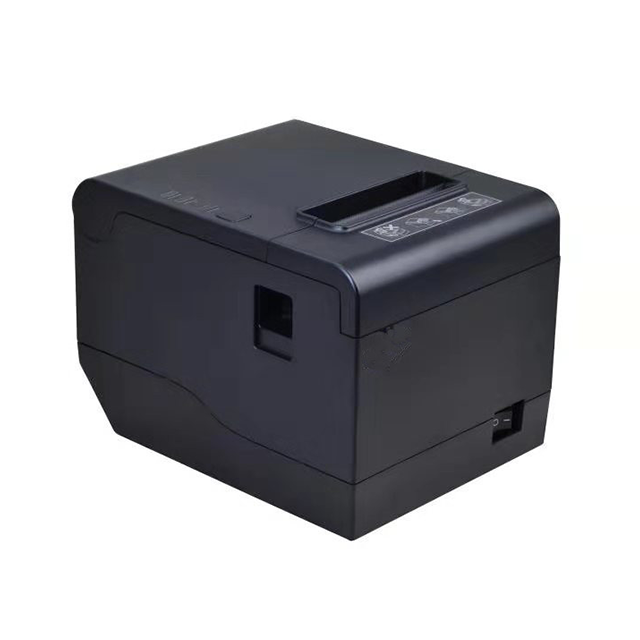
The most common approach to computer-free printing leverages a smartphone or tablet. Your smart device acts as the central processing hub. It formats the document and transmits the raw data wirelessly to the printhead.
Bluetooth technology creates a direct, one-to-one paired connection between your phone and the hardware. This localized radio frequency does not require an active internet connection or a router. Therefore, mobile food truck operators and craft vendors can operate seamlessly in remote locations where Wi-Fi is completely unavailable.
Unlike localized Bluetooth, Wi-Fi and Local Area Network (LAN) models connect directly to your local network router. For fixed retail environments, utilizing an 80mm USB Lan port Thermal printer provides an exceptionally stable connection. By hardwiring the machine into the router via an RJ45 cable, any mobile tablet on the same Wi-Fi subnet can instantly transmit receipt data. This architecture eliminates the pairing delays and range limitations often associated with standard Bluetooth.
In certain secure environments, even a smartphone is impractical or strictly prohibited. Standalone hardware provides a completely independent solution. These robust machines possess enough internal memory and processing power to execute print jobs natively.
High-end commercial models frequently feature a built-in USB Host port. Operators can save pre-formatted label files (such as .PRN, .ZPL, or raw PDFs) onto a standard FAT32-formatted USB flash drive. By inserting the drive directly into the machine, users navigate the file directory using the physical interface and initiate printing. This offline method is highly effective in secure warehouse facilities where workers cannot carry personal devices.
Furthermore, specialized units are designed as all-in-one kiosks. They feature integrated LCD touchscreens or mechanical keypads. Operators manually input variable data—like batch numbers or pricing—directly into the machine. The internal firmware then generates the barcode on the fly.
Eliminating the computer from the workflow opens up immense operational efficiencies across multiple industries. Below are the most practical everyday applications.
Independent sellers operating on platforms like eBay or Shopify often manage their entire business via mobile apps. When an order drops, the seller generates a 4x6 inch shipping label directly within the platform. By utilizing a wireless device, they push the PDF label straight to the printer, saving crucial minutes per package.
Modern Point of Sale systems are increasingly tablet-based. An iPad running Square or Shopify POS communicates seamlessly with network-connected hardware. This setup keeps the checkout counter clean and free of bulky desktop towers, while still delivering fast, crisp 80mm receipts to customers.
In warehouse management, mobility is everything. Workers utilizing handheld Android scanners update inventory levels in real-time. When a new pallet arrives, the worker generates and prints a new barcode label directly to a strategically placed wireless printer on the warehouse floor.
When transitioning to a PC-free setup, you must decide between software-dependent and software-independent hardware. This decision significantly impacts your daily user experience and long-term hardware viability.
Feature | App-Based Printing | App-Free (Native) Printing |
|---|---|---|
Setup Process | Requires downloading a proprietary manufacturer app from the App Store/Google Play. | Uses native OS print spoolers (Apple AirPrint, Android Default Print Service). |
Formatting Tools | Includes robust drag-and-drop editors, barcode generators, and PDF cropping tools. | Requires documents to be pre-formatted to the correct dimensions before printing. |
Privacy & Security | May require account creation, cloud syncing, or unnecessary location permissions. | 100% private. Data stays entirely on your local network or device. |
Longevity | Vulnerable to "abandonware" if the manufacturer stops updating the app for new OS versions. | Highly future-proof. Relies on universal network protocols (IPP, raw TCP). |
Proprietary applications simplify the process of designing labels from scratch. They offer automated image cropping tools specifically designed to shrink standard 8.5x11 inch shipping PDFs down to a 4x6 label size. However, relying on an app introduces potential vulnerabilities, such as mandatory account creation.
For users prioritizing longevity, "app-free" models act as standard network devices. By utilizing universal protocols, these machines communicate directly with the mobile operating system. While this method requires the user to ensure documents are pre-formatted, it guarantees long-term compatibility.
Selecting the correct hardware requires careful evaluation of empirical specifications. As an engineer, I recommend checking three core metrics before purchasing.
First, determine your primary environment. If you require constant mobility, Bluetooth is essential. Alternatively, if the device will remain stationary, a physical LAN (RJ45) port offers superior stability. Devices featuring a combination of interfaces provide the best fail-safe redundancy.
Second, assess the maximum print width. Hardware is categorized by the media size it can handle. A 2-inch (58mm) model is strictly for basic mobile receipts. A 3-inch (80mm) unit is the industry standard for retail POS dockets. If you are handling logistics, a 4-inch (108mm) machine is necessary for standard courier labels.
Finally, verify the command language. Look for a reliable 3-inch Barcode Thermal printer that supports ESC/POS commands natively. This ensures seamless compatibility with 99% of modern point-of-sale software without requiring complex driver installations.
Establishing a stable connection between a mobile device and printing hardware is a straightforward process. Follow this sequence for a flawless setup.
Power On and Network Test: Turn on the device. For Bluetooth models, pairing mode is usually active by default, indicated by a flashing LED. For network models, hold the feed button while powering on. This action prints a self-test page revealing the factory IP address—a crucial detail for LAN configuration.
Establish the Link: Open your smartphone's Bluetooth settings and pair the device. If you are using a Wi-Fi or LAN model, ensure your smartphone is connected to the exact same Wi-Fi subnet as the printer.
Load the Media Correctly: Insert the thermal paper roll. Ensure the chemically treated side faces the printhead. A simple frontline engineering trick is to scratch the paper lightly with a fingernail. The side that leaves a dark gray friction mark is the printable surface. Adjust the internal media guides to prevent the roll from shifting during high-speed output.
Format and Execute: Open the file you intend to print. Send the print command and monitor the output. If the barcode is faint or the text appears jagged, access the device settings to increase the print density. This optimizes the heat applied by the printhead.
PC-free printing dramatically streamlines your daily workflow. It allows you to operate a business directly from the palm of your hand. Whether you are generating shipping labels from your living room or handing out receipts at a crowded farmer's market, bulky laptops are officially a thing of the past.
By carefully evaluating your specific operational demands, you can choose hardware that perfectly matches your connectivity needs. Bluetooth is ideal for highly portable tasks, while LAN and Wi-Fi ports offer the rock-solid stability required for high-volume retail. Ready to upgrade your workspace and ditch the desktop? Explore the professional-grade solutions at Oawell to find the perfect hardware tailored to your mobile business.
Yes, this is entirely feasible. The most reliable method is utilizing a printer that supports Apple AirPrint. This allows you to push 4x6 PDF labels directly from the iOS file viewer over a local Wi-Fi network. Alternatively, you can use a Bluetooth-enabled model in conjunction with the manufacturer’s dedicated iOS application to route the PDF to the printhead.
Not necessarily. The requirement for an active internet connection depends entirely on your connectivity protocol. Bluetooth establishes a localized, direct radio connection between your phone and the hardware, requiring zero external internet access to function. Wi-Fi printers require a local router to communicate, but the router itself does not need an active external internet connection just to route local print jobs. However, if your label files are stored in the cloud, you will need internet access to download them to your phone first.
No. A thermal ribbon cannot be used independently. Thermal ribbons are specifically engineered for thermal transfer printers. These machines utilize a precisely controlled, heated printhead that applies exact amounts of thermal energy and physical pressure. This melts the wax or resin from the ribbon onto the label substrate. This thermodynamic process cannot be replicated manually.
Connection failures are typically caused by protocol conflicts or OS permission restrictions. First, ensure the printer is not currently paired to another nearby device. Most standard Bluetooth units do not support multipoint connections. Second, if you are using an Android device, verify that location services are enabled. Modern Android architectures require location permissions to scan for nearby Bluetooth Low Energy (BLE) devices. Finally, perform a hard reset on both devices to clear the Bluetooth cache.
Yes. Enterprise-grade commercial printers often prioritize native OS integration over proprietary software. Devices equipped with Wi-Fi or LAN ports can frequently be added directly to a mobile device's native print spooler using standard IPP (Internet Printing Protocol). This bypasses third-party applications entirely, ensuring a more secure workflow.
You can achieve this using the WPS (Wi-Fi Protected Setup) button if your router and printer support it. Simply press the WPS button on your router, then immediately press the Wi-Fi pairing button on the printer. The devices will automatically negotiate a secure connection. Alternatively, you can temporarily connect your smartphone to the printer's direct Wi-Fi hotspot, access its internal web portal via a browser, and manually input your local router's SSID and password.
Yes, provided you are using a network-connected model (Wi-Fi or Ethernet LAN). When the printer is wired into your local router, it acts as a shared network resource. Multiple iPads running POS software can send print jobs to the machine's IP address at the same time. The printer's internal memory will queue the incoming data packets and print the receipts sequentially, preventing data collisions.


